 drawbridge
Installing drawbridge
Install over USB from a computer. No factory reset, and nothing on the phone is erased.
It works on ordinary Android phones with Google on them and on deGoogled open-source Android alike.
On a phone that is already in use, apps that are never allowed (social media, harmful games, browsers the policy does not sanction) start disappearing within minutes of the install, and whatever was only inside them goes too. Move what you want to keep off the phone first: export bookmarks, save photos out of an app that holds them, write down what you are signed in to. Apps you can still choose about, like WhatsApp or YouTube, are left alone until you lock. Nothing else is erased: your photos, messages and other apps stay where they are.
Installing on a new phone, or after a factory reset
The easiest case: there is nothing on the phone to move off it, and nothing you chose gets uninstalled. The one thing to get right is the accounts. Android only hands over this level of control to a phone with no account left on it, so skip the sign-in during setup and sign in at the end instead.
- 1Go through Android's setup and skip signing in. If the phone is already past setup with accounts on it, choose the second situation in the menu above instead.
Skipping the sign-in during setup
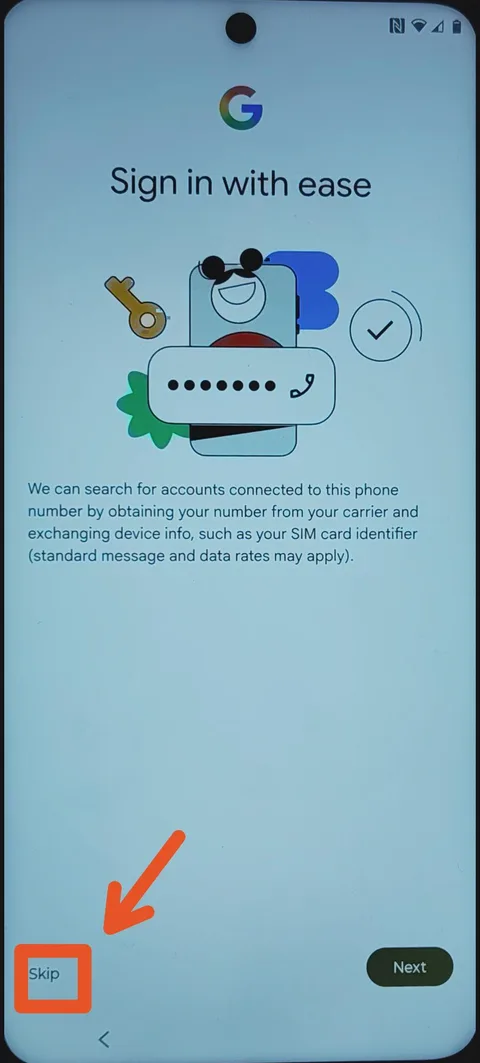
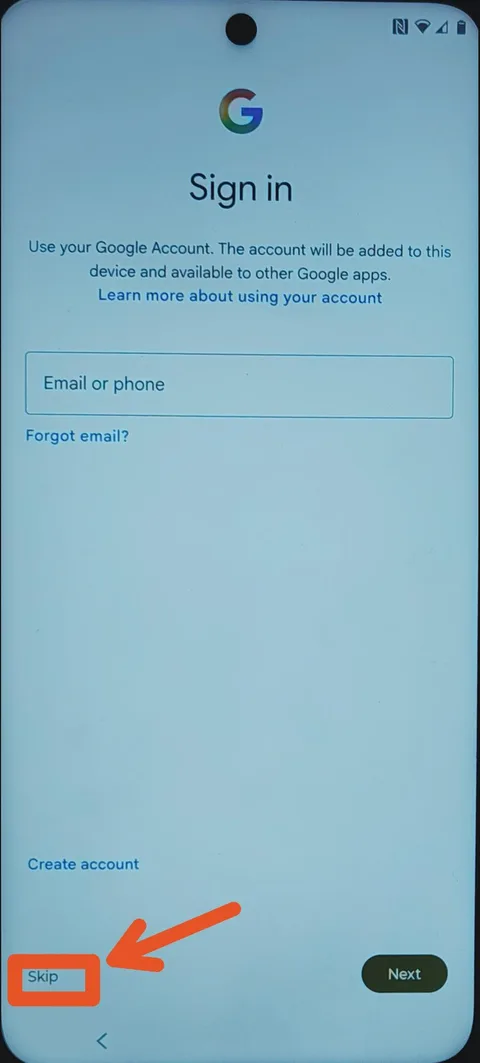
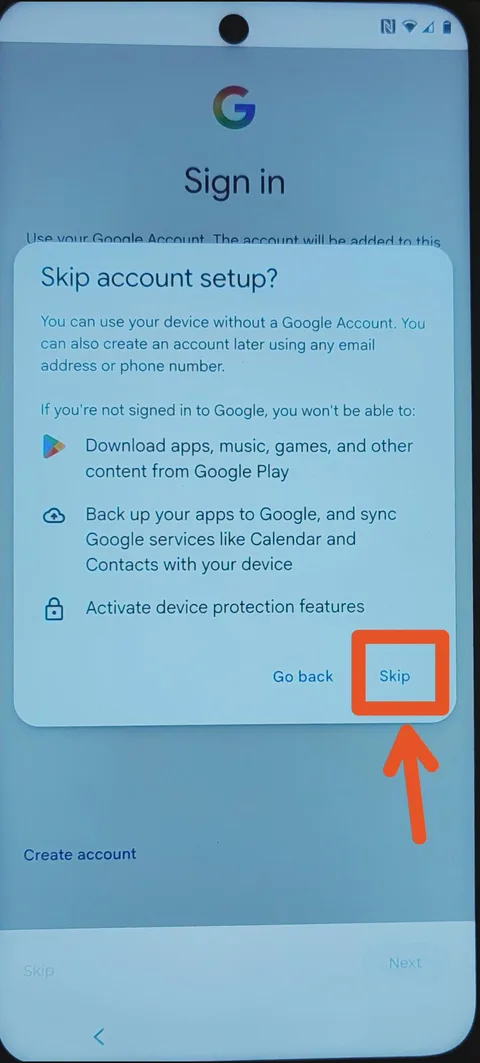
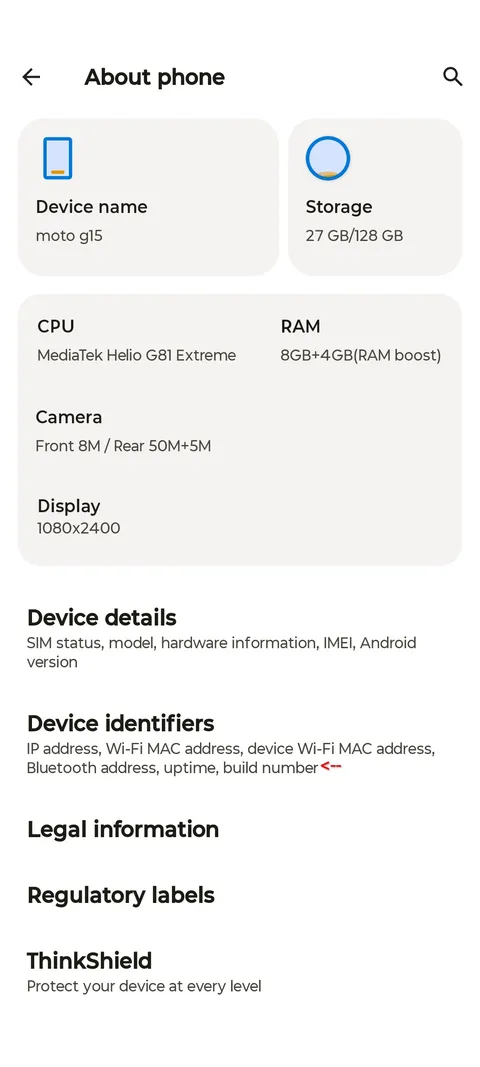
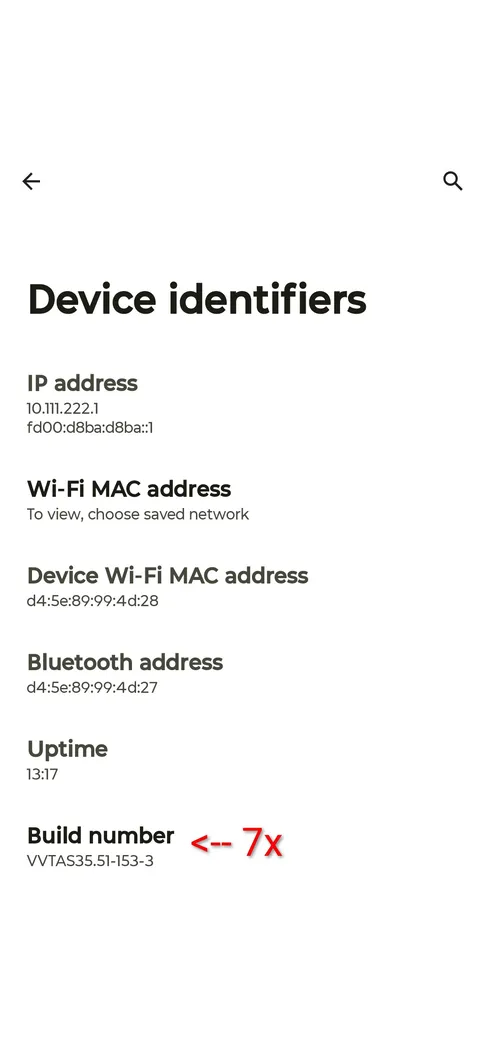
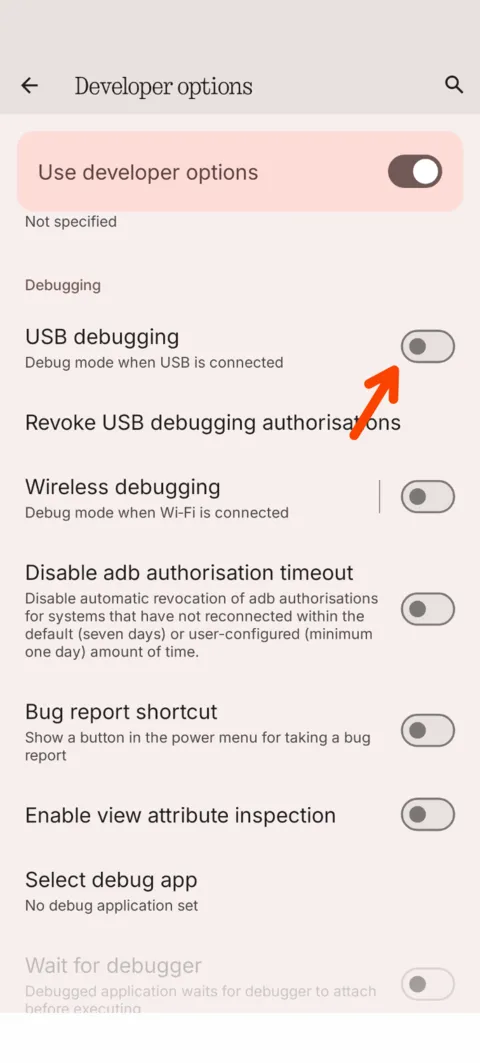
- 2Enable Developer Options (tap the build number in Settings → About phone several times) and turn on USB debugging.
Turning on USB debugging
- 3Connect the phone to a computer with a USB cable, and press the install button below.
Apps the policy never allows still go, within minutes of the install. On a phone this new that means the manufacturer's preloaded social apps and games, and nothing you put there.
When the installer has finished, sign back in. Settings → Passwords, passkeys & accounts → Add account, for the Google account and for WhatsApp and Signal. Restore their backups from inside those apps.
Installing on a phone that is already in use
- 1Move what you want to keep off the phone. Export bookmarks, save photos out of an app that holds them, write down what you are signed in to. The warning above says what goes.
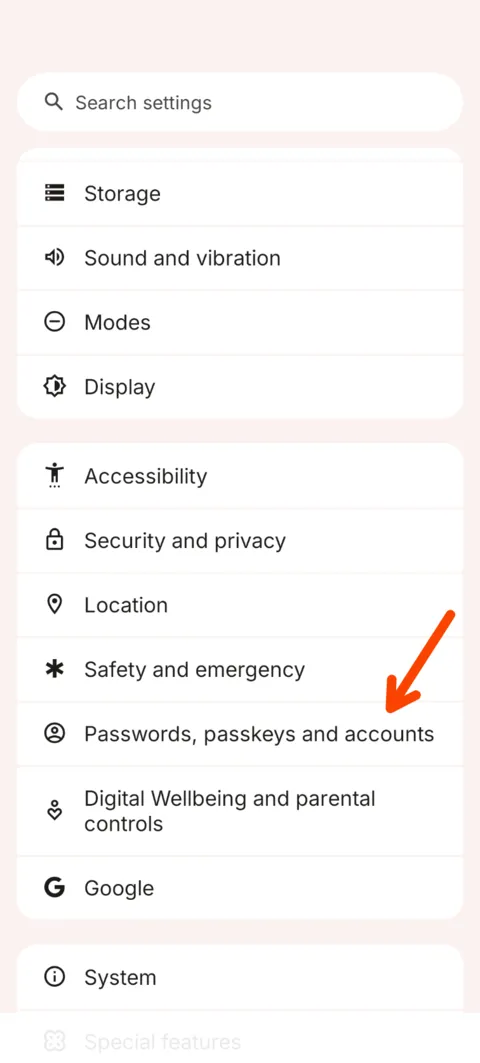
- 2Remove every account from the phone. Settings → Passwords, passkeys & accounts. Not only the Google ones. WhatsApp and Signal are accounts on this screen too, and they have to go with the rest: Android hands over this level of control only to a phone with nothing left in that list. Back up first what you would not want to lose. WhatsApp's chat backup and Signal's own backup are both made from inside those apps, before you remove the account here. You put the accounts back at the end.
Removing the accounts
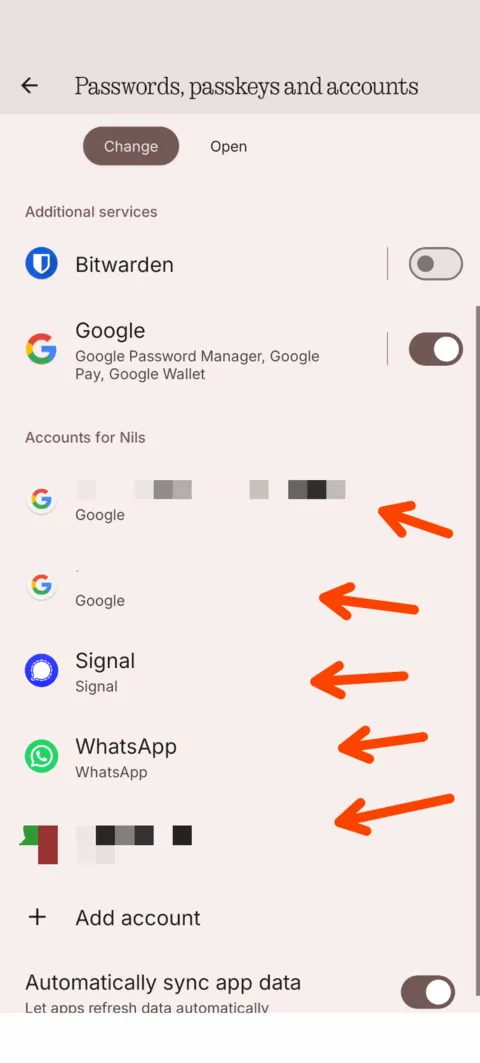
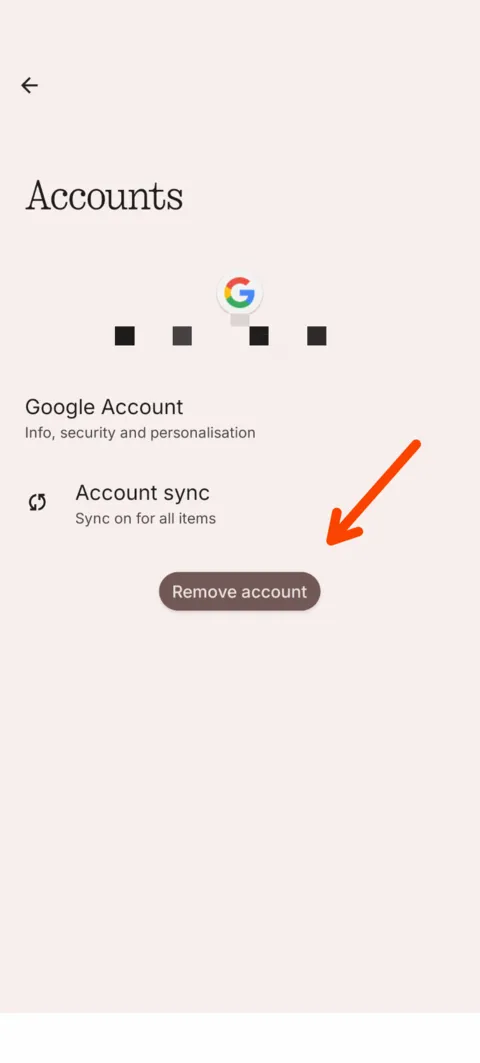
- 3Delete the Private Space, if the phone has one. Settings → Security & privacy → Private Space → Delete private space. Android refuses this level of control while any second profile exists, and a Private Space is hidden: it does not appear in the user switcher, and it needs its own PIN. Any other extra user is in Settings → System → Multiple users.
- 4Enable Developer Options (tap the build number in Settings → About phone several times) and turn on USB debugging.
Turning on USB debugging
- 5Connect the phone to a computer with a USB cable, and press the install button below.
When the installer has finished, sign back in. Settings → Passwords, passkeys & accounts → Add account, for the Google account and for WhatsApp and Signal. Restore their backups from inside those apps.
Updating a phone that already has drawbridge
There is an update button in drawbridge itself. Open the app on the phone and follow the instructions it gives you. It shows you what to do, with pictures. The phone can stay locked, and you do not need your key.
If that did not work, you can do it through the USB cable instead:
- 1Unlock drawbridge on the phone with your key.
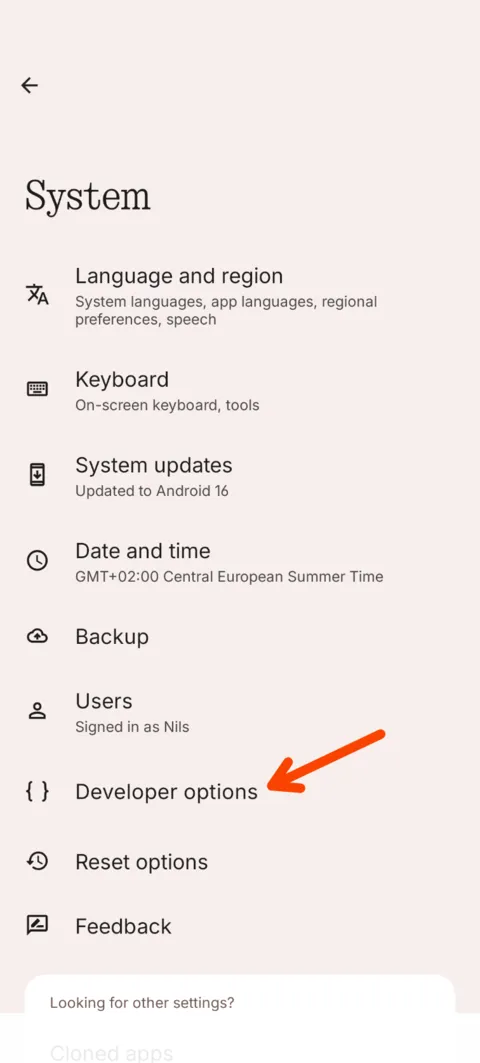
- 2Turn USB debugging back on: Settings → System → Developer options.
- 3Plug the phone in and press the install button below.
Turning on USB debugging
Unlocking discards your key, and locking the phone again mints a new one to write down. That is the cost of the cable, and the reason to try the button in the app first.
Install from your browser
This installs drawbridge onto the phone plugged into this computer. Nothing is uploaded anywhere: the app is served from this site and goes straight down the cable.
Needs Chrome, Edge or another Chromium browser. Firefox and Safari have no WebUSB.
This browser cannot talk to USB devices. Open this page in Chrome or Edge, or use tools/provision-adb.sh from a terminal instead.
- Connect to the phone
- Check the phone is ready
- Download and verify drawbridge
- Install it
- Make drawbridge the owner
Now lock it again
- 1Open drawbridge. You can check the new version under ⋮ → Diagnostics.
- 2Tap Lock drawbridge, and write down the key it shows. Locking mints a fresh one, so the key you had before stops working.
Locking switches USB debugging off. It comes back when you unlock drawbridge with your key, which is how you would install a later version over the same cable.
Now finish on the phone
- 1Sign back in: a Google account if you want one, and WhatsApp and Signal if you removed them. Restore their backups from inside those apps.
- 2Set a screen lock.
- 3Open drawbridge, choose the language, read the policy, set the options.
- 4Tap Lock drawbridge and write the key down before leaving that screen.
Locking switches USB debugging off. It comes back when you unlock drawbridge with your key, which is how you would install a later version over the same cable.
This page runs a small ADB client in your browser. It pauses Android's check on cable installs for the length of the copy, then puts it back exactly as it found it: on success, on failure, and if you unplug the phone.
If your browser cannot do it, the same install is one command from a copy of the repository, tools/provision-adb.sh, which installs both apps and makes drawbridge the owner of the phone. It is documented in provisioning.md.
Read the Q&A for what's blocked and why, or see the full sourced breakdown.